Pikmykid Staff Login: School Dashboard Access and Fixes
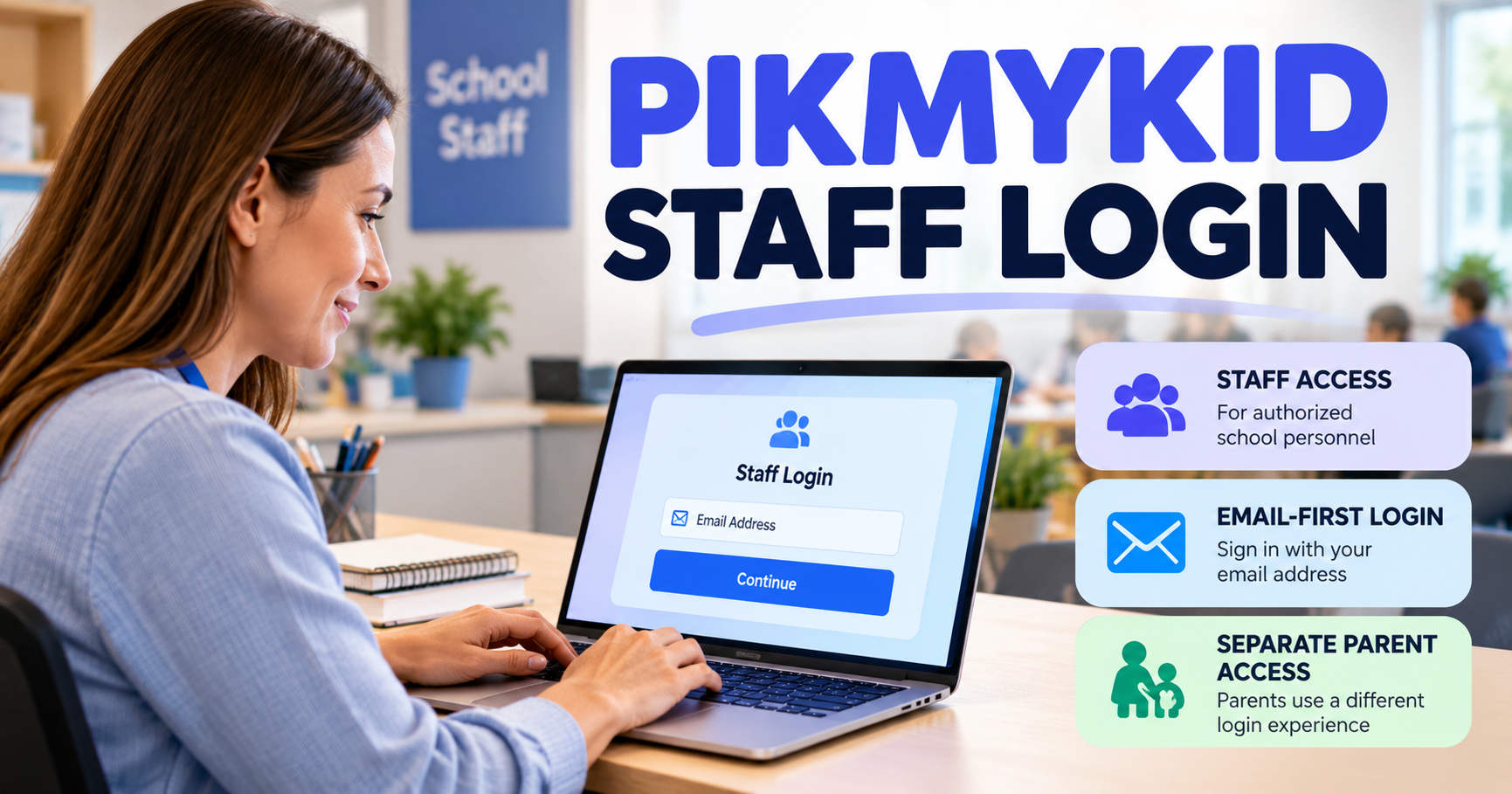
The pikmykid staff login is the school-facing sign-in for authorized employees who use Pikmykid. Staff should use the school portal rather than the parent platform, then follow the account method assigned by their school. Password, activation, SSO, and permission issues may require different fixes.
Quick Facts – Pikmykid School Portal
The table below summarizes the main details relevant to staff access.
| Field | Detail |
| Product Name | Pikmykid School Portal |
| Brand | Pikmykid |
| Category | School dismissal, safety, and staff operations software |
| Launch Year | Not publicly disclosed |
| Key Technology | Web school portal, individual staff accounts, Dispatcher functions, and parent mobile access |
| Price Range | Not publicly disclosed |
| Staff Use | School-side dismissal, student and parent information, reports, messaging, and enabled functions |
| Account Control | Schools can assign different access levels |
| Current Version | Not publicly disclosed |
Source: Pikmykid public support and product documentation.
What is the Pikmykid staff login?
The pikmykid staff login is the access point school employees use to enter Pikmykid’s school-side tools. Each staff member can have an individual account, while the school controls which functions that account can use.
That distinction matters because signing in and having permission to use a feature are separate issues. A teacher may reach the dashboard successfully but still not see the same menus as an administrator or dismissal coordinator.
Who can use the Pikmykid staff login?
The Pikmykid staff login is intended for authorized school personnel. Depending on the school, that can include teachers, office employees, dismissal staff, administrators, and other employees who need access to school-side functions.
The exact setup differs by organization. New staff should follow the account instructions provided by their school rather than assuming another employee’s login process will be identical.
Pikmykid staff login vs parent login
Staff and parents use different parts of Pikmykid. The school portal is intended for employees, while parents use the parent-facing service for family dismissal and pickup actions.
The table below shows the practical difference.
| Access type | Intended user | Main purpose |
| Staff login | Authorized school employees | School-side operations, reports, student and parent information, and enabled staff functions |
| Parent login | Parents and guardians | Parent-facing dismissal changes, arrival actions, and related family functions |
Source: Pikmykid parent support and school portal information.
Using the wrong portal can make a valid account appear unusable. Check whether you are on the staff or parent side before changing credentials.
How do you access the Pikmykid staff login?
To access the pikmykid staff login, open the school-facing portal and use the sign-in method assigned by your school. This may be a direct account or a school-managed authentication route.
Start from the official school portal or a link supplied by your district. Avoid entering school credentials on unrelated pages that only discuss Pikmykid.
Step 1: Open the school portal
Use the school-facing Pikmykid login page. Staff access is separate from the parent service.
Step 2: Enter your assigned account details
Use the identifier connected to your staff account. Do not assume your personal email address is always the same as your staff login identifier.
If you are unsure which detail applies, confirm it with the school administrator. Repeatedly trying different emails or usernames can make the problem harder to diagnose.
Step 3: Enter your password
Enter the password linked to the account. If the password is rejected and the identifier is correct, use the official password-recovery option rather than making repeated guesses.
Step 4: Open the School Dashboard
After a successful login, the dashboard shows the functions available to your account. Different employees can see different tools because schools can assign access according to role.
If the dashboard opens but an expected feature is missing, check permissions rather than immediately resetting the password.
How does first-time Pikmykid staff login work?
First-time pikmykid staff login depends on how the school created the account. New employees should follow the onboarding instructions supplied by the school and confirm that their account details are correct.
Before troubleshooting a password, verify that the account actually exists and is tied to the right email address.
What should new staff check first?
Confirm the school has created your staff profile and recorded the correct contact details. Then check any onboarding or account message you received.
If your school uses a managed sign-in process, follow that route rather than creating a separate account.
What if the account email does not arrive?
Check the inbox and spam folder linked to the email address your school has on file. If no message appears, ask the administrator to verify the address attached to the account.
Do not create a duplicate staff account unless the school instructs you to do so. A second account may not carry the expected permissions.
Can Pikmykid staff use school-managed access?
Some schools may use managed authentication, including SSO, while others may rely on direct credentials. The correct method depends on the school’s setup.
Single sign-on can let school users reach several education applications from one sign-in point, as reported by TechCrunch. That describes the general SSO model, not a guarantee that every Pikmykid school uses it.
Direct Pikmykid login
A direct login uses the Pikmykid school sign-in page. Staff enter the account information connected to their school profile.
School-managed or SSO access
If your district gives staff an SSO or managed-app portal, use that approved route. Do not assume the same provider or process applies across different schools.
If the district portal works for other school services but Pikmykid does not open, contact school IT or the administrator responsible for application access.
How do you reset a Pikmykid staff password?
Use the password-recovery option connected to the official staff login. Enter the email associated with your account and follow the recovery instructions sent to that address.
If no recovery message arrives, confirm the account email with your school before attempting other fixes.
Pikmykid staff login password reset steps
- Open the official school login or password-recovery page.
- Choose the password-recovery option.
- Enter the email connected to your staff account.
- Follow the instructions sent to that email.
- Return to the staff login and try again.
- If recovery fails, ask the administrator to verify the account.
Never give your password to a coworker or support contact. Password sharing can let another person act through your account, according to WIRED.
Why is the Pikmykid staff login not working?
A pikmykid staff login can fail because of the wrong portal, incorrect credentials, incomplete account setup, a school-managed sign-in problem, or missing permissions. The fastest approach is to identify which stage is failing.
Check the portal first, then credentials, account setup, managed authentication, and permissions.
The table below maps common problems to the next useful check.
| Problem | Likely area | Next step |
| Login page looks unfamiliar | Wrong portal | Return to the school-approved staff page |
| Password is rejected | Credential issue | Use official password recovery |
| New employee cannot sign in | Account setup | Ask the school to confirm the profile and email |
| Login works but tools are missing | Permissions | Ask an administrator to review access |
| Managed sign-in stops before Pikmykid opens | District authentication | Contact school IT |
| Parent reaches the staff site | Wrong account type | Use the parent-facing service |
Source: Pikmykid support information and competitor troubleshooting coverage.
Are you using the correct Pikmykid login?
Check the portal before changing credentials. Staff should use the school-facing system, while parents use the parent service.
If the destination is wrong, changing the password will not solve the problem.
Is your password or account email wrong?
If the portal is correct, verify the details connected to the staff account. Use password recovery only after confirming the account exists.
A recovery message going to the wrong address is a reason to ask the school to review the staff profile.
Can you sign in but not see the right tools?
A successful login does not mean every employee has identical access. Schools can assign different permissions to different users.
Ask the administrator to compare your account permissions with the task you need to perform. Do not use another employee’s account to reach a missing function.
Why are features missing after Pikmykid staff login?
Features can be missing after pikmykid staff login when the account does not have permission to use them. If the dashboard opens normally, the problem may be access configuration rather than authentication.
How do staff permissions affect the dashboard?
Permissions determine what a staff member can view or use. A teacher may need different functions from an administrator or dismissal coordinator.
If another employee can see a feature you cannot, note the feature name and ask the administrator to review your access.
What can staff access after logging in?
After pikmykid staff login, staff can use the school-side functions enabled for their account. These can include student and parent information, dismissal activity, reports, messaging, and related school tools.
The exact set varies by school and permission level.
What is Pikmykid Dispatcher?
Dispatcher is a staff-facing dismissal function used during student release. It helps staff coordinate dismissal activity as families arrive.
Can staff use Pikmykid on phones or tablets?
Some Pikmykid staff functions can be used through a browser on mobile devices. Whether staff should use a personal phone or tablet is a separate school-policy decision.
Follow district rules for student information, shared devices, browser sessions, and stored credentials. ## How should staff protect Pikmykid account access?
Keep staff credentials private and sign out after using a shared computer or mobile device. Do not save passwords in a browser on a device that multiple people use unless school policy specifically allows it.
When should you contact your school administrator?
Contact the school administrator when the issue involves account creation, incorrect staff details, managed sign-in, missing students, changed roles, or unavailable permissions. These problems can require school-side changes.
Give the administrator the exact error message, the email linked to your account, and the point where the process fails. Never include your password.
How do you get official Pikmykid staff support?
Use Pikmykid’s school support resources if the school cannot resolve the issue. Before contacting support, gather your school name, staff role, account email, device, browser, and the exact error shown.
If the problem concerns local permissions or school-managed authentication, the administrator may still need to make the change.
Conclusion
The pikmykid staff login is the school-facing route for authorized employees. Use the correct portal, follow your school’s account method, recover forgotten passwords through the official process, and contact the administrator when the problem involves setup, SSO, or permissions.
FAQ
What is the Pikmykid staff login used for?
The pikmykid staff login gives authorized school employees access to school-side functions such as dismissal activity, reports, messaging, and other tools enabled for their account.
How do teachers log in to Pikmykid?
Teachers use the school-facing Pikmykid portal or the sign-in route provided by their school. They should use the staff account details assigned to them rather than the parent login.
What should I do if Pikmykid staff login is not working?
Check the correct portal first, then verify your account details and use password recovery if needed. If sign-in still fails or features are missing, ask the school administrator to review the account.
How do I reset my Pikmykid staff login password?
Use the password-recovery option connected to the school login and enter the email associated with your account. Follow the recovery instructions. If no message arrives, verify the account email with your school.
Why can I log in but not see all Pikmykid features?
Your account may have different permissions. If the dashboard opens but a tool is missing, ask the school administrator to review the access assigned to your role.



Discussion